
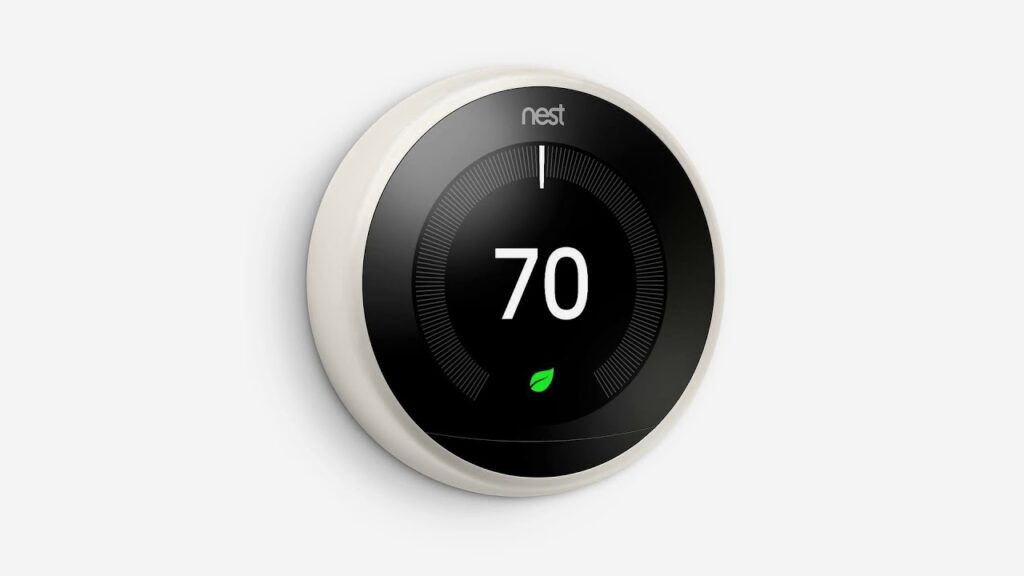
A Nest thermostat is designed to make home climate control simple, intelligent, and convenient. However, like any connected smart device, it may occasionally experience connection issues. Whether the thermostat fails to connect to WiFi, loses communication with the Google Home app, appears offline, or does not communicate correctly with your HVAC system, these problems can interrupt smart features and affect overall performance.
Fortunately, many connection issues can be resolved through a few simple troubleshooting steps. Identifying the underlying cause is the key to restoring normal operation.
This comprehensive troubleshooting guide explains the most common Nest thermostat connection problems, why they occur, practical solutions, preventive maintenance tips, and when professional assistance is recommended.
What Does Nest Thermostat Not Connecting Mean?
A connection problem can occur in several different ways.
Examples include:
- Thermostat will not connect to WiFi.
- Google Home cannot find the thermostat.
- Mobile app shows the thermostat offline.
- Heating or cooling system does not respond.
- Smart schedules stop updating.
- Voice assistant cannot control the thermostat.
- Remote access becomes unavailable.
Each symptom points to a different type of communication problem that requires a specific troubleshooting approach.
Why Connection Problems Matter
Although the thermostat may continue controlling heating and cooling in some situations, connection problems can limit many of its smart features.
Reliable connectivity ensures:
Remote Temperature Control
You can adjust temperatures from anywhere using the Google Home app.
Smart Scheduling
Automatic schedules continue learning and updating based on your daily routine.
Energy Monitoring
Energy reports help identify heating and cooling patterns that improve efficiency.
Software Updates
Firmware updates provide:
- Security improvements
- Performance enhancements
- Bug fixes
- Compatibility updates
Smart Home Integration
Reliable communication allows seamless interaction with:
- Google Home
- Smart speakers
- Voice assistants
- Home automation routines
Common Reasons Why a Nest Thermostat Is Not Connecting
Weak WiFi Signal
The thermostat may struggle to maintain a stable connection if:
- The router is too far away.
- Walls block the signal.
- Multiple wireless devices create interference.
Incorrect WiFi Credentials
Entering an incorrect network name or password prevents successful connection.
Router Configuration
Certain router settings may interfere with communication.
Examples include:
- Network isolation
- Security settings
- Frequency configuration
- DHCP issues
Software Problems
Outdated firmware can occasionally create communication problems between the thermostat and connected devices.
HVAC Power Problems
If the thermostat loses power, it may disconnect from WiFi and appear offline.
Power issues often involve:
- Missing C Wire
- Loose wiring
- HVAC transformer problems
- Circuit breaker interruptions
Google Home Sync Issues
Sometimes the thermostat remains online but becomes disconnected from the Google Home app because of account synchronization problems.
Step by Step Troubleshooting Guide
Step 1: Check Thermostat Power
Verify the thermostat display turns on normally.
If the screen is blank:
- Check the circuit breaker.
- Inspect HVAC power.
- Verify thermostat wiring.
- Confirm the C Wire connection.
Step 2: Restart the Thermostat
Restarting often resolves temporary software issues.
Allow the thermostat to reboot completely before reconnecting.
Step 3: Restart Your Router
Power cycle your router.
Wait several minutes before reconnecting the thermostat.
Step 4: Verify WiFi Settings
Confirm:
- Correct network name
- Correct password
- Strong wireless signal
- Internet connection
Step 5: Update Software
Install available firmware updates.
Software updates frequently resolve known connectivity issues.
Step 6: Check Google Home
Open the Google Home app.
Verify:
- Correct Google account
- Device visibility
- Internet connection
- Home assignment
Step 7: Test HVAC Communication
Verify:
- Heating
- Cooling
- Fan operation
- Schedule execution
Communication problems may indicate wiring or HVAC configuration issues.
Step 8: Reset Network Settings
If necessary, remove the thermostat from WiFi and reconnect it from the beginning.
Tools That May Help
Useful tools include:
- Smartphone
- Google Home App
- WiFi analyzer
- Voltage tester
- HVAC wiring diagram
- Router administration panel
Common Troubleshooting Mistakes
Restarting Too Quickly
Allow the thermostat enough time to reconnect after restarting.
Ignoring HVAC Power
Many connection problems actually originate from insufficient thermostat power.
Weak WiFi Coverage
Signal strength significantly affects thermostat reliability.
Outdated Router Firmware
Updating router firmware may improve stability.
Factory Resetting Too Soon
A complete reset should be considered only after simpler troubleshooting methods have been attempted.
Professional Troubleshooting vs DIY Troubleshooting
| Professional Support | DIY Troubleshooting |
| HVAC diagnostics | Basic inspection |
| Wiring verification | Visual checks |
| Network troubleshooting | Router restart |
| Compatibility testing | Manual research |
| Complete system testing | Limited testing |
| Faster problem resolution | Trial and error |
Advanced WiFi Troubleshooting
If basic troubleshooting does not resolve the issue, deeper network diagnostics may be necessary. Many Nest thermostat connection problems are related to wireless network configuration rather than the thermostat itself.
Check WiFi Signal Strength
A weak wireless signal can cause intermittent disconnections and slow communication.
To improve signal strength:
- Move the router closer to the thermostat.
- Reduce physical obstructions such as concrete walls or metal objects.
- Minimize interference from other electronic devices.
- Consider using a WiFi mesh system or range extender in larger homes.
Verify Router Compatibility
Some router settings may prevent the thermostat from maintaining a stable connection.
Check:
- Wireless security settings
- DHCP configuration
- MAC address filtering
- Firewall restrictions
- Guest network settings
If you’ve recently changed your router, reconnect the thermostat using the new network credentials.
Check Internet Stability
Frequent internet outages or unstable broadband connections can cause the thermostat to appear offline.
Monitor your connection for:
- Frequent disconnects
- Slow upload speeds
- Network congestion
- ISP service interruptions
Google Home Connection Issues
Sometimes the thermostat connects to WiFi successfully but does not appear correctly in the Google Home app.
Verify Google Account
Ensure the thermostat and the Google Home app use the same Google account.
Remove and Re-add the Device
If synchronization fails:
- Remove the thermostat from Google Home.
- Restart the thermostat.
- Add the thermostat again.
- Complete the pairing process.
Check Home Assignment
If multiple homes are configured in Google Home, verify the thermostat has been assigned to the correct location.
Update the Google Home App
Running the latest version of the app helps avoid compatibility problems and improves communication with smart devices.
HVAC Communication Problems
Not every connection issue is related to WiFi. In some cases, the thermostat communicates with the network but cannot control the heating or cooling system.
Common causes include:
- Loose thermostat wiring
- Missing C Wire
- Incorrect terminal connections
- HVAC control board faults
- Low voltage power supply issues
- Incorrect equipment configuration
If heating or cooling does not respond correctly after installation, the wiring and HVAC setup should be inspected carefully.
Preventing Future Connection Problems
Regular maintenance helps reduce the likelihood of connectivity issues.
Keep Firmware Updated
Software updates improve:
- Device stability
- Security
- HVAC compatibility
- Smart home integration
- Overall performance
Maintain Strong WiFi Coverage
Reliable wireless coverage ensures uninterrupted communication between the thermostat, mobile app, and Google Home.
Inspect Thermostat Wiring
During routine HVAC maintenance, verify that thermostat wiring remains secure and free from corrosion or physical damage.
Restart Your Router Periodically
Occasional router restarts can improve network performance and reduce communication problems.
Schedule HVAC Maintenance
Annual HVAC servicing helps identify electrical or equipment issues that could affect thermostat performance.
When Should You Hire a Professional?
If you’ve completed the recommended troubleshooting steps and the thermostat still fails to connect or operate correctly, professional assistance may be the best solution.
Consider contacting a qualified technician if:
- The thermostat repeatedly disconnects from WiFi.
- Heating or cooling does not respond.
- Wiring appears damaged or incorrectly connected.
- A C Wire or Power Connector is required.
- Your HVAC system includes heat pumps or zoning controls.
- The thermostat displays persistent error messages.
- Google Home integration continues to fail after repeated setup attempts.
Professional diagnosis can identify issues that may not be visible during basic troubleshooting.
Frequently Asked Questions
Why is my Nest thermostat not connecting to WiFi?
Common causes include weak WiFi signals, incorrect passwords, router configuration issues, outdated firmware, or insufficient thermostat power.
Why does my Nest thermostat show as offline?
A thermostat may appear offline because of internet outages, WiFi problems, power interruptions, or communication issues with the Google Home app.
Can a missing C Wire affect connectivity?
Yes. Insufficient power caused by a missing C Wire can result in unstable WiFi connections, unexpected restarts, and reduced smart functionality.
Why isn’t my Nest thermostat connecting to Google Home?
Check that both devices use the same Google account, verify internet connectivity, update the Google Home app, and try removing and re-adding the thermostat.
Should I factory reset my Nest thermostat?
A factory reset should only be performed after other troubleshooting methods have failed, as it removes all saved settings and configurations.
How do I know if the problem is my thermostat or my HVAC system?
If the thermostat powers on but heating or cooling does not respond, the issue may be related to HVAC wiring, system configuration, or equipment rather than network connectivity.
Can software updates fix connection problems?
Yes. Firmware updates often include bug fixes, performance improvements, and compatibility enhancements that resolve known connectivity issues.
Is professional troubleshooting worth it?
Yes. Professional technicians can quickly identify wiring faults, HVAC compatibility issues, network problems, and configuration errors that may be difficult to diagnose independently.
Conclusion
Connection issues with a Nest thermostat can be frustrating, but many problems can be resolved through careful troubleshooting. From checking WiFi signal strength and verifying Google Home synchronization to inspecting thermostat wiring and HVAC communication, a systematic approach helps identify the root cause more efficiently.
Maintaining updated software, reliable internet connectivity, and properly configured HVAC equipment also reduces the likelihood of future problems. If basic troubleshooting does not restore normal operation, professional assistance ensures your thermostat and heating and cooling system continue to perform safely and efficiently.